

Geometry Artist: Design & Construct 2D Polygons
Jan 8
2 min read


The Mission:
Become a digital architect by creating and manipulating 2D shapes on a precision grid.
Math Skills:
2D Shapes: Recognizing Squares, Rectangles, Triangles, Parallelograms, Trapeziums, and Circles.
Transformations: Practicing manual Rotation and Skewing (tilting) of polygons.
Measurement: Setting specific dimensions using sliders for length, width, and radius.
How to Play:
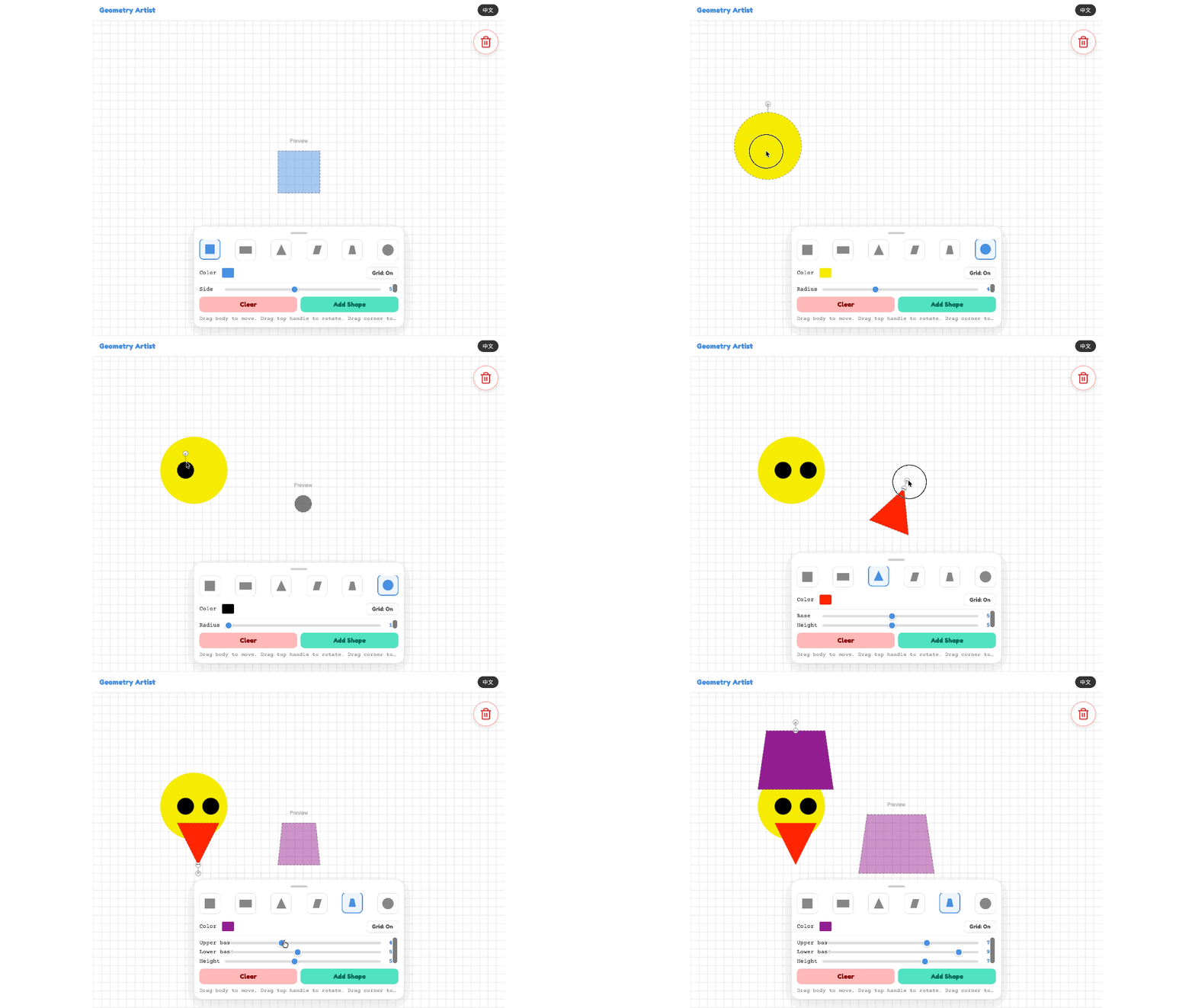
Select: Pick a shape from the Bottom Toolbar.
Adjust: Use the Sliders to set the dimensions and the Color Picker to customize your shape.
Construct: Click Add Shape to place it on the workspace.
Manipulate: Drag the shape's body to move it, the Top Handle to rotate it, or the Side Handle to skew it.
Edit: Use the Trash Bin to delete shapes or the Clear button to start over.
Grid: Use the Grid button to toggle grid lines on or off for easier alignment.

幾何藝術家:設計與構建平面圖形
任務簡介:
化身數位建築師,在精確的網格上創建並操作各種平面圖形 。
數學技能:
平面圖形: 認識正方形、長方形、三角形、平行四邊形、梯形和圓形 。
圖形變換: 練習手動 旋轉 和 歪斜(傾斜)多邊形 。
測量: 使用滑動條設定長、闊及半徑等具體尺寸 。
玩法說明:
選取: 從 下方工具欄 選擇一個圖形 。
調整: 使用 滑動條 設定尺寸,並透過 調色盤 自訂顏色 。
新增: 點擊 「新增圖形」(Add Shape) 將其放入工作區 。
操作: 拖動圖形主體進行移動,使用 上方手柄 旋轉,或使用 側面手柄 改變傾斜度 。
編輯: 將圖形拖至 垃圾桶 刪除,或點擊 「清除所有」(Clear) 重新開始 。
格線: 點擊 「格線」(Grid) 按鈕開啟或關閉背景線,方便對齊 。


